
I wanted a free way to control my PC remotely, without session limits or a complicated setup. I already had Apollo installed on the Windows machine, so I built around that instead of adding another remote desktop service. The result is Moonlight Desktop MCP: a bridge that lets an AI assistant see the desktop and use the mouse and keyboard.
Reusing what was already there
Apollo handles the remote side. It streams the Windows desktop and receives input, much as it does when I'm using a normal Moonlight client. Moonlight is free, with no subscription tiers or session timer. That made it a useful starting point for the tool I wanted.
The missing piece was giving the assistant access to that connection. MCP is the interface for this: it exposes tools the assistant can call, such as taking a screenshot, clicking somewhere, typing, or pressing a shortcut.
The MCP server runs on the controlling computer, alongside a native Moonlight bridge. Apollo stays on the Windows PC. I don't need to install a separate automation agent on Windows or have the assistant operate a local Moonlight window.
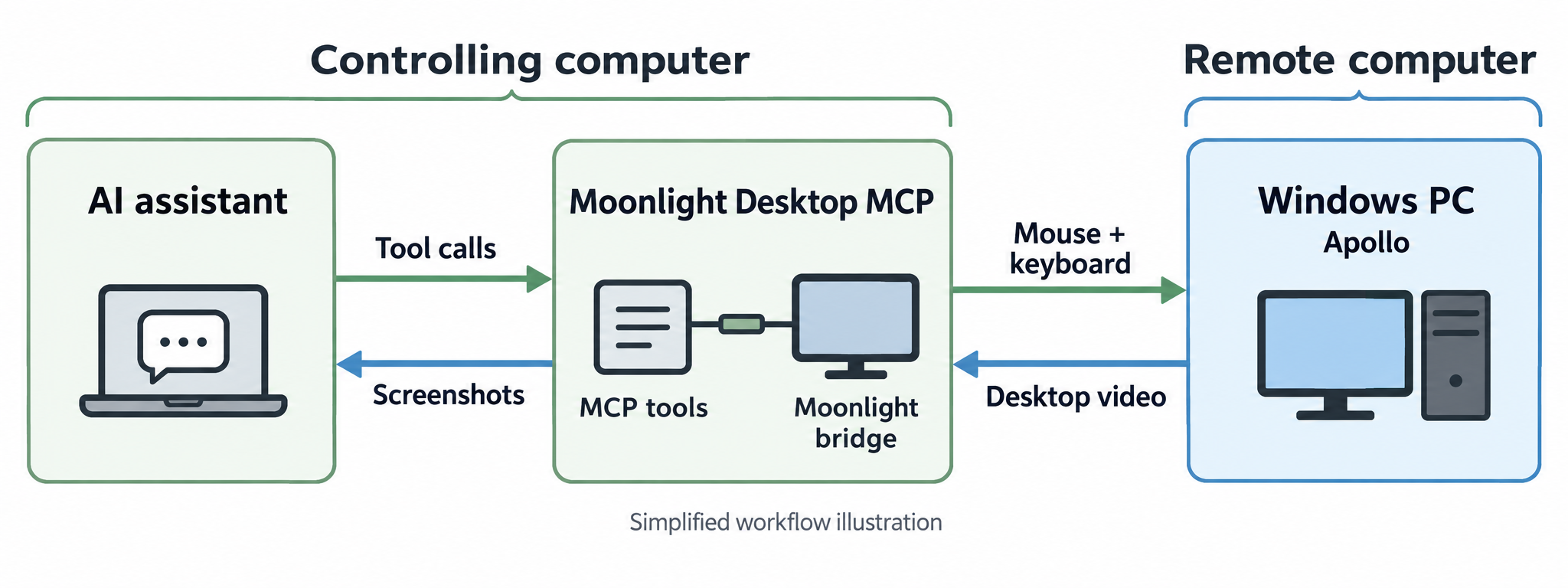
AI-generated illustration of the connection. Open it for a closer look.
See the screen, do something, look again
Once the connection is running, the workflow is straightforward. The assistant captures the desktop, finds the control it wants, sends an input, and captures the screen again to see what changed.
Opening an application is a simple example: find it on the desktop or through Start, click it, then look at the next screenshot. A click alone doesn't tell the assistant that the application opened; the next image does.
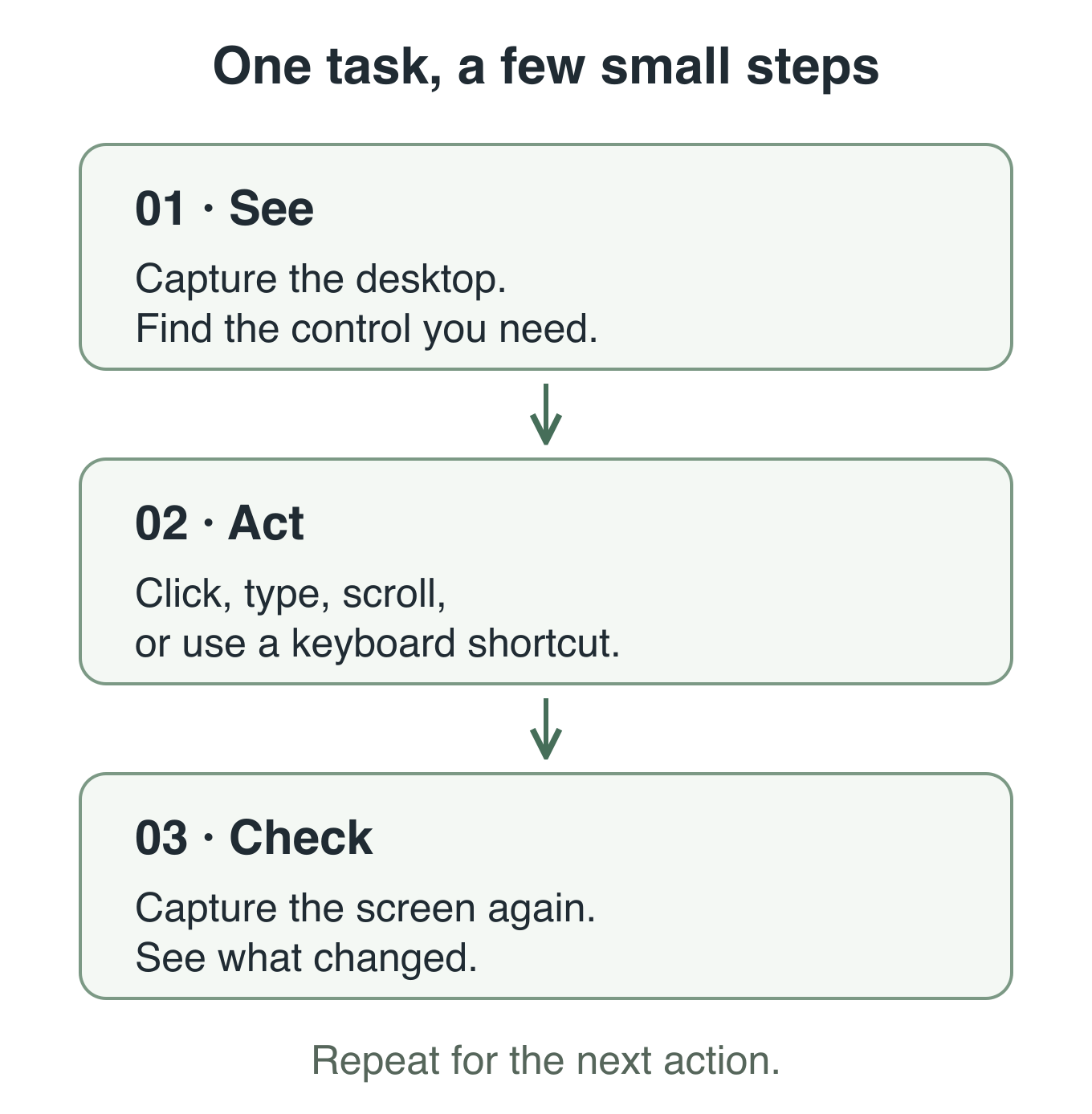
The loop behind a task: see, act, check.
I also added helpers for finding visible text, cropping part of the screen, and comparing images. They support the same visual workflow, so the assistant can work with a dialog or a particular part of a window without treating every screenshot as a completely new scene. The tool reference has the details.
Making setup less of a chore
The installer runs on the controlling computer. It prepares the dependencies, builds the native bridge, and checks that it's ready. Then the MCP client needs configuring and the connection needs pairing with Apollo, where I approve the client and its desktop-control permissions.
That keeps the setup around the streaming host I already use. The project also supports Sunshine as the Windows host, and the controlling side can run on macOS, Linux, or Windows. The installation guide covers each platform.
Keeping it focused on the desktop
The current bridge uses H.264 video and exposes screenshots, mouse input, and keyboard input. It handles one active stream and leaves an existing session alone if another client is using the PC. Audio, clipboard sync, and file transfer sit outside its current scope. The compatibility page keeps track of those details.
For me, the point was to make the desktop connection I already had useful to an assistant too. Apollo handles the PC, Moonlight handles the stream, and the MCP tools turn that into something the assistant can work with.
The repository contains the code, installation instructions, and a usage guide for the complete flow from pairing to closing a session.